Legend:  Applies to Australia only
  Applies to UAE only

Overview
You must have a user role of Stock Manager or Administrator to create In Stock or On Order vehicles from the Stock Management screen.
Sales Managers and Salespersons can add trade-ins when completing a proposal or sale and, if you have the Lead Management module, can add vehicles to be attached to a lead.
 UAE Notes
- In the UAE, AlgoDriven is the provider for vehicle data rather than Glass's or Redbook, but the process is the same no matter the data provider
- Rego2Stock had not yet been implemented in the UAE
When adding a vehicle from Stock Management, the screen is divided into 6 sections:
- 1. Stock - selecting the vehicle to be added by:
- Using Rego2Stock, or
- Drilling down on make, model, year etc in Glass's/Redbook, or
- Manually typing in the vehicle details
- 2. EasyCars - specific information on this particular vehicle
- 3. Details - more general details applicable to the vehicle's make/model/year/series
- 4. Options - Standard and Optional equipment fitted to the vehicle
- 5. Advertising - Selling price and whether the vehicle is to be sent to advertisers
- 6. Acquisition - How you acquired the vehicle, from whom and for how much
Once you have completed a section, click NEXT to move to the next section. You can also click BACK to go back to a previous section. In the final Acquisition section:
- Click SUBMIT to save the vehicle and return to Stock Management, or
- Click SUBMIT & ADD ANOTHER if you are adding multiple vehicles at the same time
Notes before you start:
- When you subscribe to EasyCars, you can choose whether Redbook or Glass's data is used to provide the vehicle information
- If your vehicle is not listed in Redbook/Glass's, you can instead manually type in the vehicle details
- If you frequently add non-standard vehicles, you can go to the Settings menu to create your own Custom Vehicles
- Custom vehicles display in the drop-down lists, enabling you to select them without typing in the details each time
- Many fields will automatically populate or will present you with drop-down lists. When filling in information, start typing and then, where possible, select from the drop-down list.
- Selecting from the drop-down lists ensures correct and consistent spelling
- When you first enter a vehicle, you may not know all details. You can enter more information later by selecting the vehicle in Stock Management, filling in the missing details, and saving the changes.
- When you add your first vehicle in EasyCars, when you click SUBMIT you will be prompted to enter the Stock Number at which you want to start
- EasyCars will then automatically increment the Stock Number each time another vehicle is added
 If you have ever previously advertised on any of the Carsales Network platforms (Carsales, Bikesales, Caravancampingsales, Boatsales, Trucksales), you must ensure the starting stock number you choose in EasyCars is higher than the highest stock number you ever used on any of those Carsales platforms.
Step-by-step Walkthrough
Tutorial Video
1. Stock Tab - Selecting a Vehicle
- Stock Type:
- The correct Stock Type must be selected so the correct vehicle can be found in Glass's/Redbook
- If the Stock Type is not correct, select the correct Stock Type from the drop-down list
- The default Stock Type can be changed by selecting Details from the Account menu and changing Default Stock Type
- Motorhomes should have a Stock Type of 'Caravan/Camper' and an Engine Number.
- If no engine number is entered, EasyCars will treat the vehicle as a towable caravan
- If no engine number is entered, EasyCars will treat the vehicle as a towable caravan
- Selecting the Vehicle:
- Once a Stock Type has been selected, the vehicle can be selected by:
- Using Rego2Stock
 , or
, or - Drilling down on make, model etc in Glass's/Redbook, or
- Manually typing in the details of vehicles that are not in Glass's/Redbook and have not been added as Custom Vehicles
- Using Rego2Stock
- Once a Stock Type has been selected, the vehicle can be selected by:
Using Rego2Stock
Rego2Stock enables you to find the correct vehicle very quickly using the vehicle's Registration Number or VIN.
- The first 10 calls to Rego2Stock each month are free
- Failed calls are not included when counting the number of calls
- Users with a role of Administrator can check the status of Rego2Stock and the number of calls made for the current month by selecting Subscription from the Account menu
- If you require more than 10 calls per month, the Master user can enable a subscription:
- In the Subscription option of the Account menu, click the Upgrade link for Rego2Stock, or
- Contact the Jeal team on 02 9623 6403, or
- Once the 10 free calls a month is exceeded, a message box pops up with a link to the Rego2Stock information page
- For the Master user only:
- The message box includes an UPGRADE button
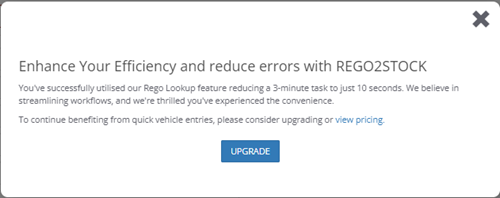
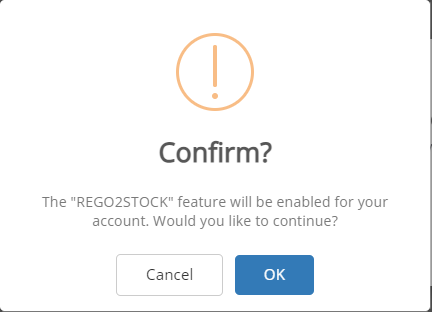
- Click UPGRADE to display the confirmation screen and confirm the subscription:
- The message box includes an UPGRADE button
- For the Master user only:
To use Rego2Stock:
- Select the Stock Type
- Search for the vehicle using its registration or VIN details:
- To check using the vehicle's registration Number:
- Select the Check by Rego option
- Select the vehicle's registration state from the drop-down list
- Enter the vehicle's registration number
- Click Check by Rego
- To check using the vehicle's VIN (for example, if the vehicle is unregistered):
- Select the Check by VIN option
- Enter the vehicle's VIN
- Click Check by VIN
- To check using the vehicle's registration Number:
- If the vehicle is found, its details will be filled in automatically from the Glass's/Redbook database
- On rare occasions, only a partial result may be returned by the data provider; a message is displayed to advise you of the details returned in that case
- If a vehicle with the same registration number already exists in your stock list, a warning message is displayed
- This is a warning only, as return customers mean you may have the same vehicle in stock more than once
Drilling down on Make, Model, etc
If you are not using Rego2Stock, you can drill down to select your vehicle:
- Select the Stock Type
- Select Make, Model etc from the lists.
- When selecting the Make, Model etc for the vehicle you are adding, begin typing in each field:
- If you use Glass's or Redbook, a list of possible matches from Glass's/Redbook for that field is displayed as you type. You can then quickly select from the list.
- If you have added Custom Vehicles in the Settings menu, these vehicles will be included in the drop-down lists that display as you type.
- If the vehicle does not appear in the lists, you can still add it.
- A minimum of Make, Model and Year is required before the vehicle can be added.
- For vehicles in Glass's or Redbook, once you have entered enough details, a list of matches will be displayed in the Glass's/Redbook section on the right.
- Once you have a list of matching vehicles from Glass's or Redbook, tick the checkbox for the exact model of your vehicle.
- Remaining vehicle details will be filled in automatically.
- When selecting the Make, Model etc for the vehicle you are adding, begin typing in each field:
2. EasyCars Tab
- If you have more than one yard, select the correct yard from the list
- Select whether the vehicle is New or Used
- If it is a demonstrator, tick the Demo checkbox
- If you mark a New car, truck, motorbike or caravan/motorhome as a demonstrator, a confirmation window asks if you wish to change the vehicle from New to Used
- In some states, registered demonstrators have the same requirements as Used/Second-hand vehicles such as a notice in the window or entries in the Dealings Register
- If you are unsure of your state's requirements, check with your state's Consumer Affairs/Fair Trading office
- See the Used & Demonstrator Vehicles section of Vehicle Forms and Information by State for references to the legislation in your state
- Answer NO to keep the vehicle as New
- If you later register the vehicle, you will be able to change it from New to Used if your state requires it to be treated as Used
- Answer YES to change the vehicle to Used
- Once the vehicle is saved as a Used demonstrator it cannot be changed back to New
- A Used vehicle will have entries in your Dealings Register and, if required, can have Notices printed
- When a Used vehicle is sold, EasyCars will include a transfer fee rather than a registration fee when calculating government charges
- If you mark a New car, truck, motorbike or caravan/motorhome as a demonstrator, a confirmation window asks if you wish to change the vehicle from New to Used
- If the vehicle is registered, enter the registration details.
- Type dates in dd/mm/yyyy format, or click the calendar icon on the right of a date field to select a date
- Type/select the vehicle's colour
- If you type a new colour, it will be added to the Colours lookup list automatically
- If known, enter or select the vehicle's first registration date (this may be required in some states)
- If your state uses Registration Check Digits, the check digit can also be entered
-
If you are using Stock Groups, select a Stock Group for this vehicle
- Create your own Stock Groups by selecting Lookup Lists from the Settings menu
- Some reports allow you to include only vehicles that belong to a specific group
- You can mark one Stock Group item as the default to which cars will initially be assigned when creating new stock
- A vehicle's Stock Group can be changed later by simply selecting a new value and saving
- The Advanced Search in Stock Management allows you to list only vehicles belonging to a selected Stock Group
- You may wish to specify on the sale invoice whether or not a vehicle meets the GCC's specification for climate and other requirements. The Stock Group For Invoices option in Report Settings allows you to do this by selecting one or more of your Stock Group labels to be printed in the Vehicle Details section of sale invoices. See Adding GCC compliance information to a Sale Invoice.
- If a PPSR Report has already been obtained, select the PPSR result and enter the certificate details
- PPSR details can be added later if you don't have them yet
- PPSR details can be added later if you don't have them yet
- Enter the plate and odometer details:
- Built and Compliance/RAV Entry dates
- Enter these in mmyy format - eg type 0322 and it will convert to 03/22
- Engine number
- VIN (or HIN for boats) and
- Odometer in Km or Miles
- Built and Compliance/RAV Entry dates
- You can also select the vehicle's Green Vehicle Rating, or mark it as Fuel Efficient for Luxury Car Tax purposes
- Green Vehicle Rating:
- In the ACT: For new light vehicles, select a green vehicle rating so stamp duty can be calculated correctly when selling
- In Victoria: If the vehicle qualifies for the 'green car' concession on motor vehicle duty, select a Green Vehicle Rating of A so duty can be calculated correctly
- A green car is a passenger car with combined tailpipe carbon dioxide (CO2) emissions of 120 grams or less per kilometre (including electric vehicles)
- Fuel Efficient LCT:
- Check this box if this vehicle is classified as fuel efficient for Luxury Car Tax
- The threshold for LCT is higher for fuel efficient vehicles, reducing the amount of LCT to be paid
- Used passenger cars less than two years old may still be liable for LCT when sold; be sure to also enter any previously paid LCT in Step 6
- If you don't know the amount yet, it can be added later in the vehicle's Purchase tab
- If you don't know the amount yet, it can be added later in the vehicle's Purchase tab
- Check this box if this vehicle is classified as fuel efficient for Luxury Car Tax
- Green Vehicle Rating:
- If you are using Stock Locations, select the Location of the vehicle from the drop-down list
- Location can be used to keep track of the current location of the vehicle (eg Workshop, Detailers, Yard)
- It is best to create your own list of standard Stock Locations by selecting Lookup Lists from the Settings menu
- In Management Reports, the Location Report displays a list of In Stock and/or On Offer vehicles and their current location. The list can be restricted to only vehicles that are in a selected location.
- If this is a commercial vehicle, tick Is Commercial Vehicle so EasyCars can calculate duty correctly
3. Details Tab
- Most vehicle details that you require will have been filled in from Glass's/Redbook
- You can select the Condition of the vehicle and, if required, add/or update other vehicle details.
- Most fields in the Details tab are self-explanatory. Some that may cause confusion include:
Drive Train: Common options include FWD, RWD, AWD, and 4WD
Engine Capacity: Actual engine capacity in cc
Engine Size: Engine size in Litres e.g. 1.6, 1.8, 2.0, 2.4, etc.
Engine Type: e.g. Rotary T/Turbo MPFI; Multi-Point F/Inj
GCM (Kg): Gross Combined Mass.
GVM (Kg): Gross Vehicle Mass (May be required for heavy vehicles to calculate Duty correctly)
Tare (Kg): Weight of the empty standard vehicle with all its fluids and 10 litres of fuel
Draft (boats): The vertical distance between the waterline and the bottom of the hull (keel)
Beam (boats): The horizontal distance (width) of the boat; measured at the waterline
ATM (caravans): Aggregate Trailer Mass Specs: GCC or Import - Advertiser specific fields include:
- Truckworld:
- Application 1, Application 2 and Application 3:
- The drop-down lists have values populated from the "TruckWorld Applications" Lookup List and are used to send Category information to TruckWorld advertising
- Application 1, Application 2 and Application 3:
- Adventure Group:
- Hull Type and Usage Category - Mandatory when Adventure Group advertising is enabled and the vehicle Type is Boat
- Caravan Sales:
- Caravan Category - Mandatory when Caravan Sales advertising is enabled and Stock Type is Caravan/Camper
- Truckworld:
4. Options Tab
- The Options section displays Standard and Optional equipment
- Selected items are in the top section; available but unselected items are underneath
- Selected items are in the top section; available but unselected items are underneath
- If necessary, add or remove Standard and/or Optional equipment fitted to the vehicle
- To remove an item from Selected, click on the x to the left of the item to move it down to Available
- To select an available item, click on the + to the left of the item to move it up to Selected
- Use the up and down arrows to change the order of selected items
- To add an item to an equipment list, type the name of the option in the field at the top and
- Click + or,
- For Optional equipment, click the V next to the + button and select Add Dealer Option or Add Manufacturer Option from the menu
- Once added, the option can be moved between the Selected and Available sections of the list as usual
- For cars and trucks selected from Redbook/Glass's or your custom vehicle list, only Optional Equipment has the edit box to allow new items to be added.
5. Advertising Tab
- Drive Away, EGC and Special Price:
- Enter the advertised selling price(s)
- You would usually initially enter either a Drive Away Price OR an Excluding Government Charges (EGC) Price
- If you enter both a Drive Away Price and an EGC Price, the Drive Away Price takes precedence when a selling price is required for unsold vehicles (eg when sending advertising or printing a brochure)
- If you then also enter a Special Price, it replaces the other price(s) you have entered
- Special Price can be used if, for example, you are offering a short-term sale price
- You must have at least one of Drive Away Price or EGC Price before you can enter a Special Price
- You can remove the Special Price later to revert to the normal Drive Away or EGC price
- If Special Price is filled in, when sending to advertisers:
- Depending on the advertiser, the drive away or EGC price might be crossed out and the special price displayed next to it
- When stock has a Drive Away Price and a Special Price, the Special Price is advertised as the drive-away price
- When stock has an EGC Price and a Special Price, the Special Price is advertised as the price excluding government charges
- When stock has all three - a Drive Away Price, an EGC Price and a Special Price - the Special Price is advertised as the drive-away price
- Enter the advertised selling price(s)
- Send to Advertisers / Send To Facebook Advertising
- Select whether the vehicle will be sent to your online advertisers
- If left unticked now, you can always come back to the vehicle's Advertising Tab and update the options once the vehicle is ready for sale
- Vehicle Description:
- Enter the vehicle description that is to be sent to online advertisers and included when printing a brochure for the vehicle
- The description can be entered:
- Manually: Type in your description of the vehicle
- Using AI assistance: Use AI to generate a description of this vehicle which can then be edited as you require:
- Optionally, enter comma-separated keywords/phrases that you want emphasized or appearing early in the description
- For example: low mileage, sunroof
- Click Auto Generate
- Generating the description takes a few seconds
- Read the generated description and, if necessary, edit it to suit your requirements
- Optionally, enter comma-separated keywords/phrases that you want emphasized or appearing early in the description
- Video Link:
- If you have a dealer website built by Jeal, you can:
- Record a video of the vehicle
- Upload the video to Youtube, and
- Paste the Youtube video link here
- The video will then be playable on the vehicle ad on your website
- If you have a dealer website built by Jeal, you can:
6. Acquisition Tab
- Acquired Date or Order Date:
- If adding an In Stock vehicle, enter or select the date on which you acquired the vehicle
OR - If adding an On Order vehicle, enter the Order Date and details such as Expected Delivery Date and the Manufacturer's Reference
- If adding an In Stock vehicle, enter or select the date on which you acquired the vehicle
- Previously Paid LCT:
- If this car is two years old or less and has already been subject to Luxury Car Tax, you may still have to charge LCT when you sell it if the car has increased in value.
- The LCT calculated by EasyCars when you sell a car will be reduced by the amount you enter as Previously Paid LCT
- Salesperson:
- If you track acquisition sales people, select the sales person responsible for this acquisition
- If you track acquisition sales people, select the sales person responsible for this acquisition
- Acquired Method:
- Select the acquisition method: Purchase or Consignment
- Note: Trade-in is not listed here as trade-ins are added during the sale of the vehicle for which the trade-in is part payment
- Floorplanned By Vendor:
- If the vehicle is being floorplanned by the vendor (eg the manufacturer is financing the acquisition), tick the checkbox
- A floorplan window will pop up after you submit the acquisition details
- Market Value:
- You can enter the vehicle's Market Value, but if you leave it blank it will be automatically filled in with the acquisition cost you enter
- You can enter the vehicle's Market Value, but if you leave it blank it will be automatically filled in with the acquisition cost you enter
- Acquired From:
- Enter details of who the vehicle was acquired from:
- Select from the list of existing suppliers, or add a new contact
- If the vehicle is registered to a different person/company, untick Same as Acquired From and select or add the registered-to contact
- Enter details of who the vehicle was acquired from:
- Acquisition Cost and Input Tax Credit:
- Enter the price you paid for the vehicle as the Acquisition Cost
- Check the Input Tax Credit option and correct it if necessary. See GST Basics.
- Tax Inv Provided: If purchased from a GST-registered entity, your purchase price will include GST and a tax invoice will be provided to you
- Non-Registered (Notional ITC): If purchased from a non-registered entity, no GST is included in the purchase price. However, a GST credit will be claimed when the vehicle is sold. This notional input credit will be the lesser of 1/11 of the purchase price and 1/11 of the selling price.
- No GST: There will be no GST applicable to the purchase of the vehicle
- Please be aware this only applies to imported vehicles, where GST is a separate expense
- Check the Input Tax Credit option and correct if necessary. See VAT when Purchasing and Selling Vehicles.
- Tax Inv Provided: You have a valid tax invoice for the purchase and are entitled to claim a tax input credit for the purchase
- Calculated on Profit Margin: This is second-hand vehicle eligible for the Profit Margin Scheme; no input credit for the purchase can be claimed, but tax is calculated only on your profit margin when the vehicle is sold
- No VAT: You do not have a valid tax invoice and the vehicle is not eligible for the Profit Margin Scheme; no input credit for the purchase can be claimed, and tax is calculated on the full selling price when the vehicle is sold.
- Payout:
- If there is a Payout owing on the vehicle and you will be paying it to the finance company on behalf of the person you are buying from, select or add the payout finance company and enter the payout amount
Click SUBMIT to finalise adding the vehicle, or click SUBMIT & ADD ANOTHER to add this vehicle and immediately add another one.